

A patient asks about a first appointment on WhatsApp. The front desk needs to find the right slot, confirm it and manage the arrival. After the visit come charting, billing and follow-up. FunnelOps white-label CRM for clinics brings those steps into one built-in module a partner can offer with its own logo, colors and domain.
Online booking, WhatsApp and the waitlist
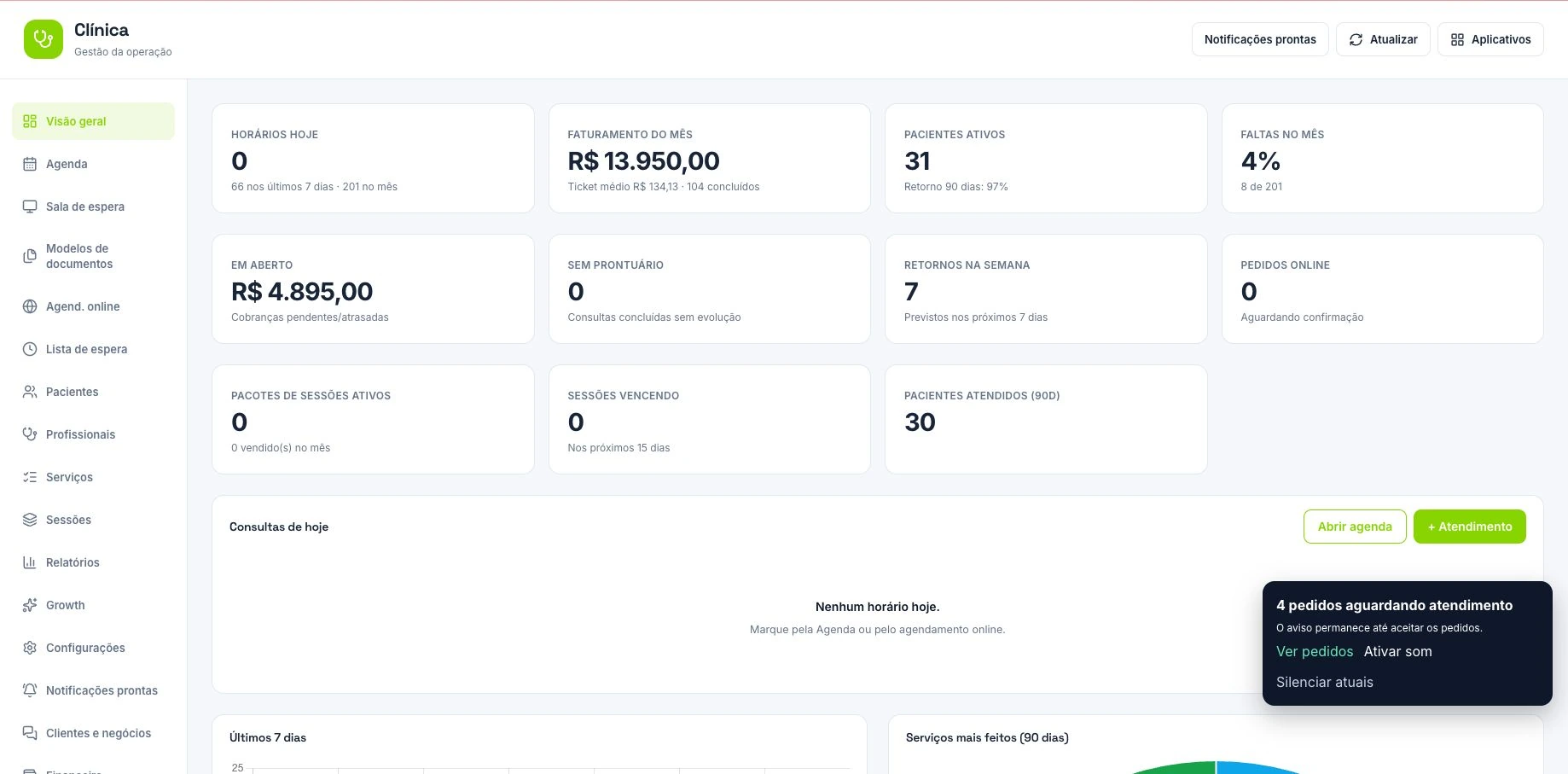
Set up practitioners, specialties, services, durations and working hours. The calendar organizes consultations, follow-ups, exams, procedures, assessments and sessions. Patients can request a slot through a public link. The front desk can accept or decline requests in one place. When a slot opens up, the waitlist helps find a patient who can take it.
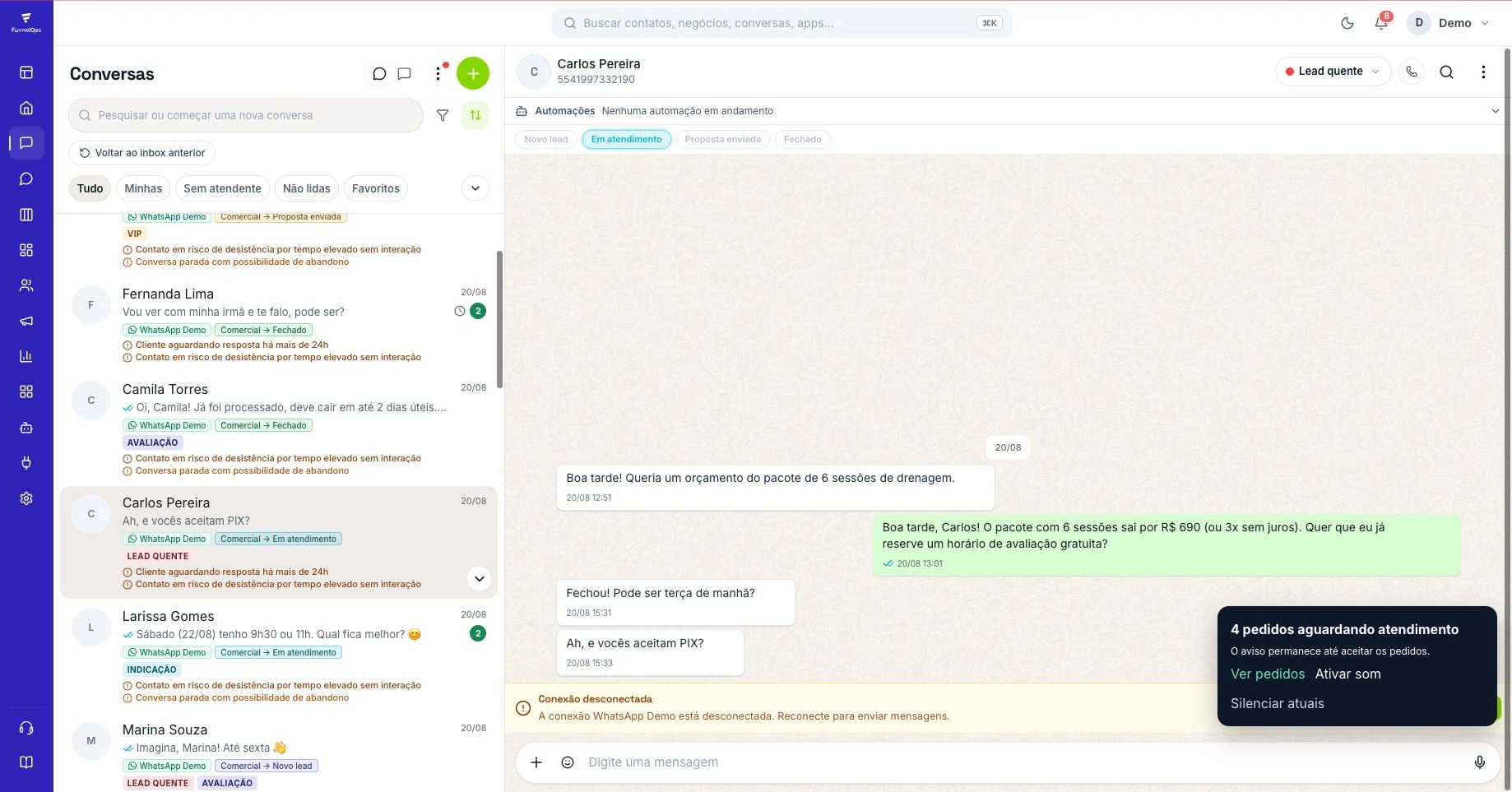
WhatsApp and the CRM pipeline help track inquiries, bookings and people the team still needs to contact. Once the channel and rules are set up, clinics can use appointment reminders and confirmations. An AI assistant can help with administrative questions and hand off to staff according to the clinic’s settings.
Front desk: check-in, waiting room and TV display
Staff can record arrivals and track the waiting room queue. The module supports a self-service check-in kiosk and a TV call display when configured. Appointment status helps staff see who has arrived, who is being seen, who missed their visit and who has finished.
Patient profile, charting and documents
The patient profile brings together registration details, insurance, visit history, sessions and billing. Staff with clinical access can review allergies, medication, intake forms and progress notes. The intake form can be shared by link for completion before the visit. Clinical staff can also attach files and use templates to generate PDFs such as prescriptions, certificates, test requests and referrals.
During setup, assign access by role. The front desk needs the calendar and queue; clinical notes should be available only to authorized staff. Use fictional data in demos and keep service AI focused on administrative tasks.
Sessions, billing, practitioner payouts and reporting
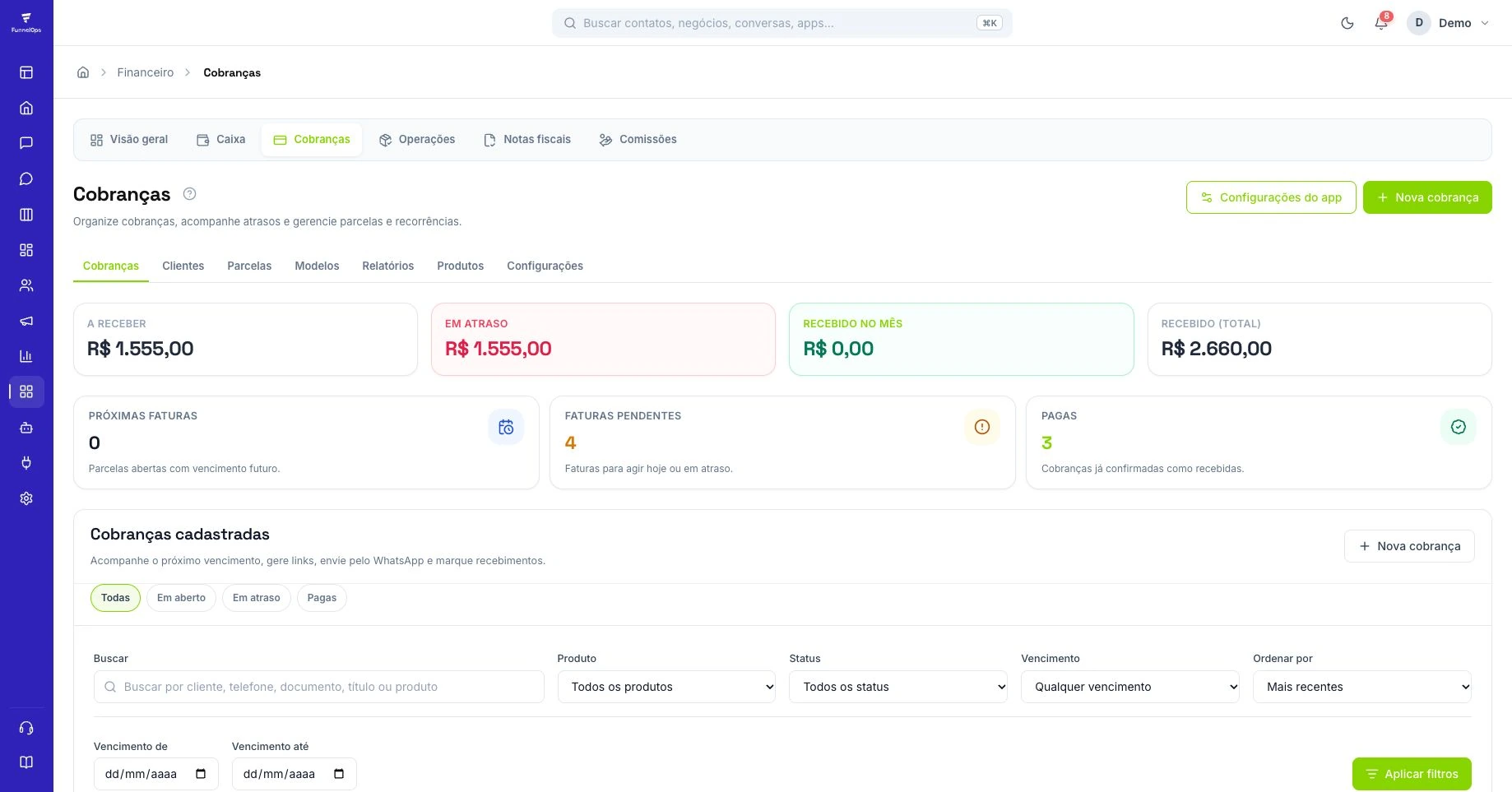
Clinics can organize individual sessions or packages, record usage and check remaining sessions. Self-pay visits can generate a charge. Finance staff can track payments and outstanding balances, post transactions and set practitioner payout rules. Recording insurance helps identify the appointment type; clinics should validate their insurer billing requirements separately.
The dashboard and reports help staff track visit volume, pending booking requests and upcoming follow-ups. Relationship tools give staff a starting point to reach out when a follow-up is due, using the clinic’s approved message and channel.
How to demo and resell the clinic CRM
Demo an appointment from start to finish: someone requests a slot, the front desk confirms it and checks them in, the clinician completes the visit and finance sees the charge. For a small practice, start with scheduling and WhatsApp. For a clinic with several practitioners, include permissions, waiting room, templates and payout rules in the rollout.
Agree on what setup, training and monthly support cover. In the first month, track pending requests, no-shows and booked follow-ups. Those numbers help the clinic assess what changed. Confirm module, channel and AI availability for your white-label setup.
Build a calendar that reflects the clinic’s capacity
Consider a fictional clinic with two practitioners and one receptionist. An initial consultation takes fifty minutes and a follow-up takes twenty. Before promoting online booking, create separate services with the correct durations and configure each practitioner’s availability. Include breaks and time slots the clinic can actually offer. Then use the public link as a patient and request one appointment of each type. Reception should find both requests, verify the details, and confirm an appropriate slot. This exercise shows whether the configuration reflects the operation or merely fills a generic calendar.
Decide who handles requests requiring review. A patient asking for an extra slot, different coverage, or another practitioner may need a receptionist’s decision. Record this guidance in the conversation and configure AI to collect administrative information and hand over the case. The demonstration should end with a verifiable decision in the dashboard. A pending request still needs confirmation. Teach the team to explain the next step and avoid promising two appointments for one request.
Test the handover from reception to practitioner
In the simulation, have the patient arrive ten minutes early. Reception finds the appointment and records the arrival. The practitioner follows the status and starts the consultation when available. If the clinic uses a check-in kiosk or calling display, check the patient identifier, equipment position, and readability from the waiting area. A dashboard working on an administrator’s desk still needs testing in the waiting room with the accounts used for everyday work.
Repeat the journey using each staff role. The receptionist should complete their tasks with their own account. Clinical staff need access to the patient record and documents appropriate to their role. Use fictional patients and verify permissions before entering real information. When a record is missing, first check the company, selected patient, and access profile. This avoids creating duplicate records to solve a visibility issue. Document who authorizes additional slots, who records arrivals, and who corrects an incorrectly entered appointment.
Check sessions and finances with a complete case
To demonstrate packages, create a fictional four-session package and record its first use after the relevant appointment. Check the remaining balance in the patient record and the financial entry for the sale when that workflow is configured. Staff need to distinguish purchasing the package, receiving payment, and using a session. These events can happen on different dates. An appointment booked for tomorrow still requires attendance and payment verification.
At the end of the pilot, compare completed appointments, used sessions, and financial records. If the clinic allocates revenue to practitioners, review the rule with its manager and check a sample calculation. Document how cancellations and corrections should be handled before expanding usage. For insurance-related requirements, turn the clinic’s needs into specific questions about authorization and billing. Confirm the contracted scope before offering a particular integration. Implementation should produce a defined routine that reception, practitioners, and finance can all execute and verify.
Measure missed appointments and waiting time consistently
Choose a week and record how many appointments remained scheduled, how many took place, and how many were missed. In an illustrative example of eighty retained appointments and twelve missed visits, the no-show rate is fifteen percent. State whether advance cancellations were excluded from the denominator and keep the same rule next time. When reminders are configured, check delivery records for the channel. Scheduling the routine or completing an automation still requires verifying that the patient received the message.
To examine waiting time, compare arrival with the start of care using the available records. Separate patients arriving late, preceding consultations running longer, and reception backlogs. Each cause requires a different decision. Changing service duration may help one specialty while another needs wider gaps between appointments. Give the clinic owner an observed problem, an adjustment, and a review date. This follow-up gives a white-label partner a concrete conversation about value tied to the clinic’s everyday work.
Frequently asked questions
Is the module a separate app?
It’s a built-in CRM module. Scheduling, contacts and billing run on the same platform, so you can offer the clinic workflow with your branding and enable features according to each clinic’s setup.
Can patients book online?
Patients can request a slot through the booking page. The request remains pending until reception confirms it. Show that distinction when defining the workflow.
Bring this CRM to your customers
Talk to FunnelOps to explore the module and confirm availability for your reseller business.
Offer it under my brand →